30 Connect an AI agent
Build and run Wake CFD projects together through MCP
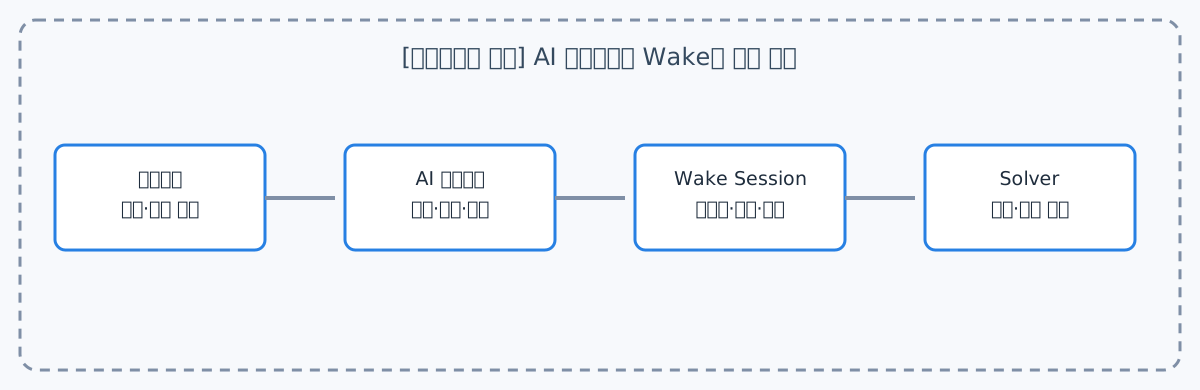
Wake CFD is designed for AI agents to do more than generate JSONC text. Through the shared WakeProjectModel, an agent can assemble, validate, save, run, and control cases using the same project state that Wake CFD Desktop displays. Engineers provide analysis goals and constraints; agents perform repeatable edits while the engineer reviews the resulting model and solution.
30.1 What agents can do
Through the Model Context Protocol (MCP), an agent can perform the following Wake CFD tasks.
- Create projects and analysis cases, including derived cases from existing ones
- Register meshes and change physical models, boundary conditions, and numerical settings
- Inspect the input schema and packaged examples
- Validate JSONC, apply patches and overlays, and configure parameter and mesh sweeps
- Save projects, start local solvers, and check run status
- Attach to an open Wake CFD Desktop session and edit the live project shown in the GUI
- Control an active run by checking status, pausing, resuming, stopping, changing supported runtime parameters, or requesting a one-shot output
For example, you can request:
Starting from the ONERA M6 example, create cases for Mach 0.82 and 0.85, enable Cp output for each, then validate the input.
Rather than merely copying an example, the agent can retain derived cases and their changes, keeping comparison conditions and work history together.
30.2 Connection method
Wake CFD provides wake_session_mcp, a standard-input/output MCP server. It exposes the same session operations used by the Desktop control plane: project and case edits, schema and example lookup, validation, run start, and run control. The server can use a local model for headless authoring or proxy requests to a live Desktop session.
In a release distribution, connect by registering the Wake CFD server in the AI client’s MCP configuration. Configuration-file locations and UI names differ by client, but the required information is the same.
{
  "mcpServers": {
    "wake": {
      "command": "wake_session_mcp",
      "args": [
        "--schema-dir", "<Wake CFD installation path>/share/input-reference",
        "--examples-dir", "<Wake CFD installation path>/examples",
        "--solver", "<Wake CFD installation path>/bin/wake_3d_mixed"
      ]
    }
  }
}
On Windows, add .exe to executable names. Linux installations may add wake_session_mcp and wake_3d_mixed to PATH. Follow release notes and installation instructions for actual distribution paths.
Two connection modes
The default configuration starts a private, headless session owned by the MCP process. To operate the project currently open in Wake CFD Desktop, register an attached server instead:
{
  "mcpServers": {
    "wake-desktop": {
      "command": "wake_session_mcp",
      "args": ["--attach"]
    }
  }
}
--attach discovers the Desktop loopback control endpoint from its local control.json. An explicit host:port can be supplied when required. If no Desktop session is available, the server can fall back to a local model, so the same MCP client remains useful for headless authoring.
30.3 Recommended workflow
- Open or create a project, then decide whether the agent should use a headless session or attach to the open Desktop project.
- Give the agent specific goals, conditions to change, and constraints to preserve.
- Review the agent’s changes and input-validation results in the GUI; attached edits are reconciled into the live project automatically.
- Ask the agent to save and run the case, then inspect residuals, force coefficients, and spatial results in the GUI or result tools.
- If results are sound, promote a derived case to the baseline or extend the sweep.
30.4 Use with Wake CFD Desktop
When Wake CFD Desktop is running, use the --attach MCP configuration to connect to its loopback ControlServer. The MCP client and Desktop then share one live WakeProjectModel: an agent can change cases, meshes, and settings, while the Desktop reconciles those changes into its project tree and editors. Conversely, edits made in the GUI are available to the agent the next time it reads the session.
Only one control surface drives the live session at a time. When the Desktop’s in-process AI Assistant is enabled, its own agent owns the control path; external --attach access is available when that assistant is off. This prevents two agent loops from editing the same case concurrently.
30.5 Engineer review points
AI agents speed up repeated case setup and comparison, but responsible analysis judgment remains with the engineer. Before running, check the following.
- Mesh-marker and boundary-condition connections
- Consistency of physical models, reference values, and units
- Convergence monitors and required output settings
- Whether results match expected physical behavior
- Whether the agent is connected to the intended project (headless session or live Desktop session)
For detailed input meanings, see the Input and configuration reference; for execution and convergence diagnostics, see How to use Wake CFD.