1 Installation
Windows installer and Linux binary distribution
Wake CFD is distributed in a form appropriate for the operating system.
Windows provides an installer for Desktop and CLI components. Linux provides a compressed binary distribution with install.sh for user installation.
1.1 Distribution plan
| Platform | Distribution | Recommended for |
|---|---|---|
| Windows 10 / 11 | Installer (WakeCFD-<version>-win-x64.exe) |
Individual workstations centered on Desktop |
| Linux x86_64 | Compressed binary (wake-<version>-linux-x64.tar.gz) + install.sh |
CLI, GPU servers, and MPI/HPC environments |
Filenames and the list of supported distributions will be finalized for the first public release. The commands and folder structure on this page define the reference interface for that distribution.
1.2 Requirements
| Item | Recommendation |
|---|---|
| OS | Windows 10 / 11, Linux (x86_64) |
| Memory | 16 GB or more (32 GB+ for large meshes) |
| GPU | CUDA-capable NVIDIA GPU with CUDA 12.8 or later (recommended) |
| Disk | 1 GB for binaries, plus workspace for each case |
| Post-processing | ParaView (recommended for result visualization) |
Wake CFD supports CPU execution without a GPU. Cases execute unchanged on CPU, but CPU-specific optimization has not been performed; CPU execution is slower than GPU execution. CPU parallelization uses MPI.
Windows supports one GPU only
The MPI stack in the Windows build does not support GPU-aware MPI. Multi-GPU execution is therefore unavailable on Windows; it runs on a single GPU only.
For multi-GPU execution, use Linux with GPU-aware MPI (a CUDA-enabled OpenMPI or MVAPICH2 build, for example). See Running Wake CFD for parallel-execution details.
1.3 Windows: Installer
- Run
WakeCFD-<version>-win-x64.exe. - Select an installation location.
- When installation finishes, start Wake CFD Desktop from the Start menu or use the CLI in the installation directory.
The installer includes Desktop, the 2D/3D solvers, examples, and required runtime libraries. After installation, verify the setup with the ONERA M6 quickstart.
1.4 Linux: Compressed binary and install.sh
Extract the archive and execute from the working directory, or install under a user path with install.sh.
tar -xzf wake-<version>-linux-x64.tar.gz
cd wake-<version>-linux-x64

# User installation: default path ~/.local
./install.sh

# Install to another location
./install.sh --prefix /opt/wake
install.sh installs executables and shared resources to the selected location, then prints PATH setup instructions. Open a new shell after installation or apply the indicated PATH setting.
1.5 Verify installation
To confirm the installed version, execute a solver binary without arguments. The solver prints version information and exits.
Windows PowerShell
.\wake\bin\wake_2d_mixed.exe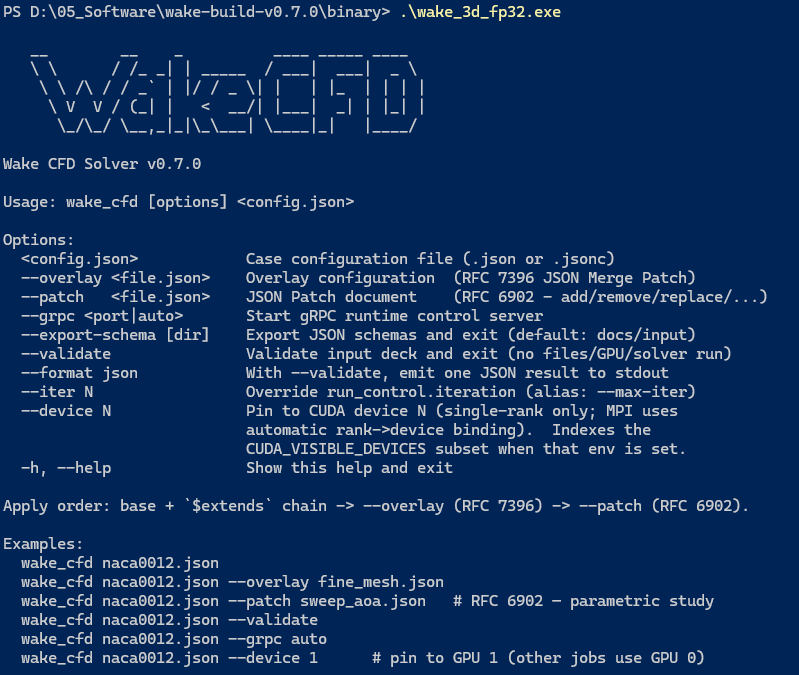
Linux
./wake/bin/wake_2d_mixed
./wake/bin/wake_3d_mixed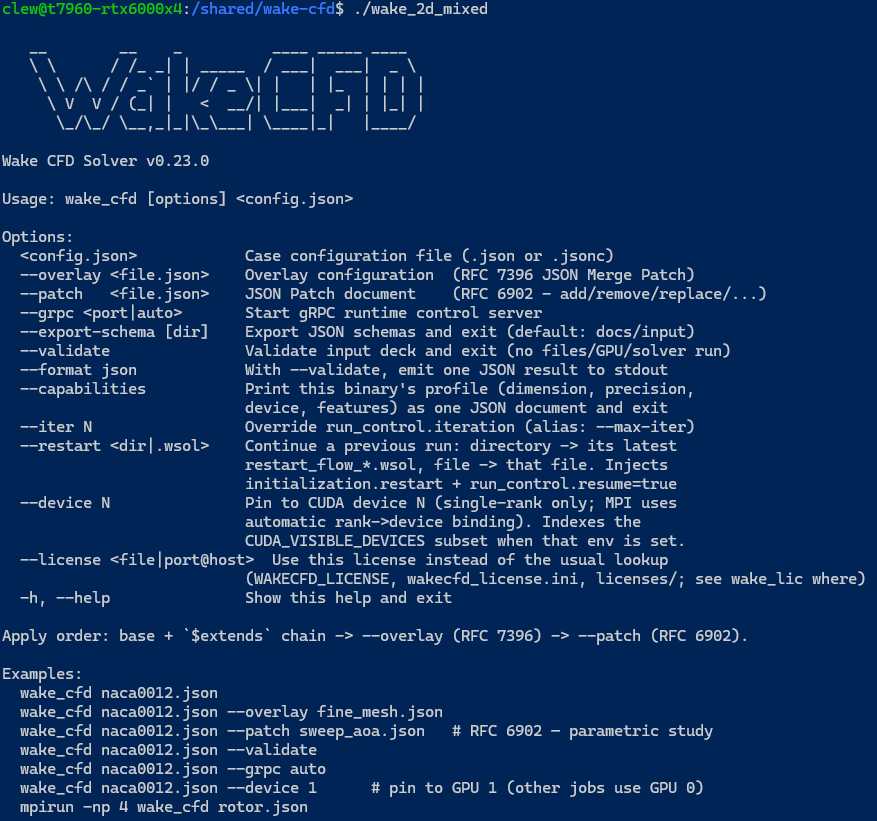
wake_2d_mixed
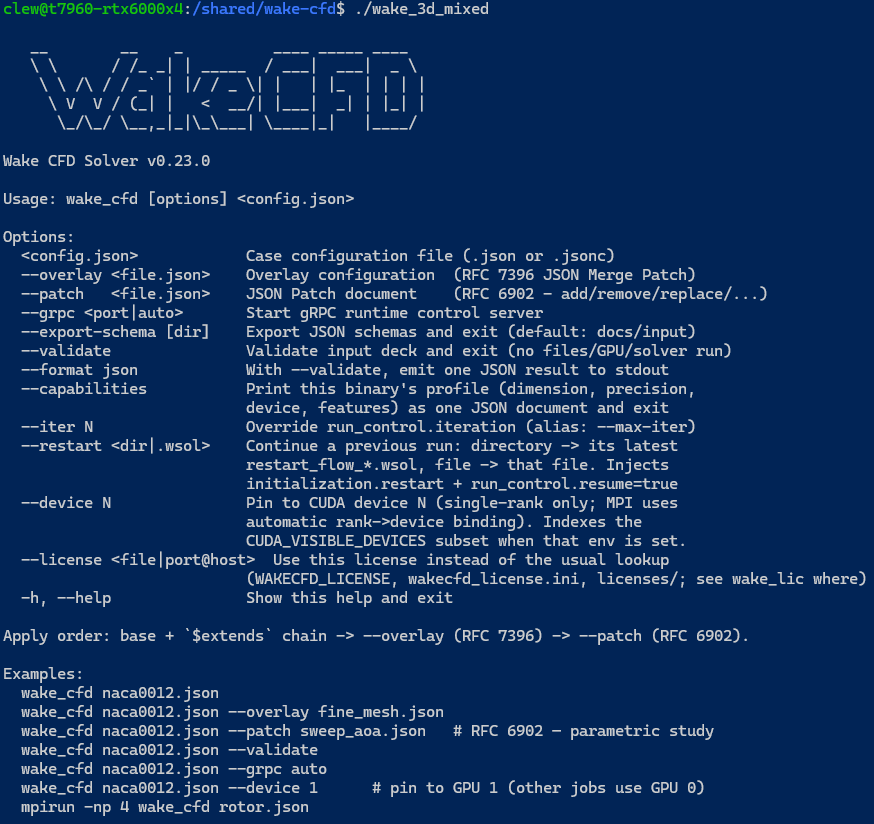
wake_3d_mixed
Each binary is verified separately, because a distribution may ship only one of them. This check confirms that the executable can start. To verify that cases execute and produce results, proceed to the ONERA M6 quickstart.
Do not relocate installed files
Wake CFD executables depend on runtime libraries in the distribution directory structure. Do not move solver binaries or shared libraries to other locations after installation.
1.6 Distribution layout
Example directory structure after extraction:
wake/
├─ bin/
│  ├─ wake_3d_mixed[.exe]    # 3D solver
│  └─ wake_2d_mixed[.exe]    # 2D solver
├─ examples/           # Runnable examples and meshes
│  └─ onera-m6-wing/
├─ install.sh          # Linux user-installation script
└─ ...                 # Windows DLLs or Linux shared libraries
Linux executables do not use the .exe extension.
1.7 Running Wake CFD
Two execution approaches are available. Select the approach appropriate for the workflow.
1.7.1 Approach 1 — Call using a relative or absolute path from the working directory
Place the JSONC case file in a working directory and reference the solver binary using a relative or absolute path.
# Example working-directory layout
my_case/
└─ case.jsonc

# Run from the working directory
../../wake/bin/wake_3d_mixed ./case.jsonc
Or use an absolute path:
/path/to/wake/bin/wake_3d_mixed ./case.jsoncRecommended — Separate directory per case
Keeping each case in a separate directory isolates its output files (*.csv, *.out, *.log, restart files(*.wsol), volume dumps, and more).
1.7.2 Approach 2 — Add bin to PATH
For frequent use, add the bin directory to PATH to execute wake_3d_mixed from any directory. On Linux, install.sh prints PATH configuration instructions during installation.
Windows (PowerShell, persistent):
$env:Path += ";C:\path\to\wake\bin"
[Environment]::SetEnvironmentVariable("Path", $env:Path, "User")
Windows (cmd, current session only):
set PATH=%PATH%;C:\path\to\wake\binLinux / macOS (~/.bashrc or ~/.zshrc):
export PATH="$PATH:/path/to/wake/bin"After adding it:
cd my_case
wake_3d_mixed ./case.jsonc
1.8 Migrating existing YAML cases
YAML input is rejected by the solver before execution (d0125 Phase A, 2026-05).
Use the packaged wake-migrate utility to convert files in bulk, then use .jsonc or .json.
wake-migrate case.yaml -o case.jsoncThe conversion result is JSONC with comments preserved. After conversion, run .jsonc or .json files. For format and inheritance details, see Configuration files.