Use the AI Assistant
Set up, check, and run cases by conversation inside Wake CFD Desktop
Wake CFD Desktop has a built-in AI Assistant panel that works on the project open in the window. It reads and edits that project through the same tools an external agent uses, and every edit is judged by the solver’s own validation. The panel registers those tools itself, so the only thing to set up is the model it talks to.
The difference from Connect an AI agent is where the conversation happens and who supplies the model: the panel runs in the Desktop and calls a model provider with your API key, while an external client such as Claude Desktop or the ChatGPT desktop app brings its own subscription and attaches from outside.
What the panel needs
- In-App AI turned on, in the Settings tab of the ribbon.
- One model, registered in the panel, with an API key from its provider.
No MCP registration is needed. The panel starts wake_mcp --attach by itself and works on the open project from the first reply.
The AI group of the Settings tab
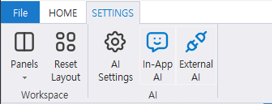
| Button | What it does |
|---|---|
| AI Settings | Opens the panel’s settings page, where models and tool use are configured |
| In-App AI | Turns the panel’s own agent on and off. Off: its service does not run and the panel says so |
| External AI | Allows external agents to attach to this window. Off: they are disconnected and refused. The panel is not affected |
The panel itself sits at the right edge of the window. Open it from Settings > Panels, or from the AI Assistant tab at the edge.
Register a model
Choose AI Settings, then Add under Models.
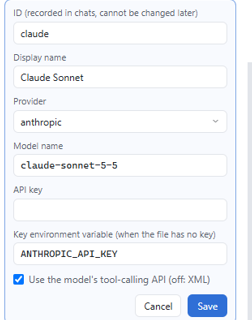
| Field | What to enter |
|---|---|
| ID | The identifier recorded in every chat. It cannot be changed later |
| Display name | The name shown in the panel |
| Provider | anthropic, openai, gemini, local, or echo |
| Model name | The provider’s own model identifier, exactly as the provider writes it, for example claude-sonnet-5-5 |
| API key | The key itself. Leave it empty to use an environment variable instead |
| Key environment variable | The name of the variable that holds the key. It is read when the field above is empty |
| Address (OpenAI-compatible) | The endpoint, for a provider that is reached at an address of its own |
| Use the model’s tool-calling API | Leave it on. Off, the model is asked for tool calls in XML instead, which suits only a model without a tool-calling API |
The key is a credential for the provider account, not for a model: the same key reaches every model that account may call, and Model name decides which one answers.
Prefer the environment variable. The panel’s settings are kept in agent-host.json in the user settings folder, which holds API keys as plain text and is shared by every installed version. A variable set after the Desktop started is not visible to it, so set the variable first and start the Desktop afterwards.
Save the model, then choose Test on its row.
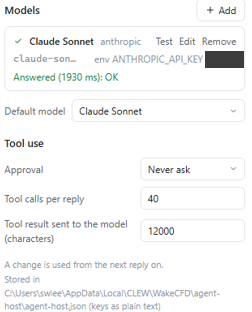
Test sends one short request and reports the time and the answer, or the error. It checks the model and the key only. To check the tools as well, ask the panel something about the project, as the next section does.
With several models registered, Default model decides which one answers.
Tool use
| Setting | Meaning |
|---|---|
| Approval | Never ask runs every tool without asking. Ask before hard-to-undo tools asks first for a tool that deletes or overwrites, with This is hard to undo. Run it? and Allow or Deny |
| Tool calls per reply | How many tools one reply may call. Setting up a case takes many calls in a row |
| Tool result sent to the model (characters) | How much of a tool’s result reaches the model. A longer result is cut |
Set Approval to Ask before hard-to-undo tools while the panel is new to you: reads pass without a prompt, and only the calls that remove a case, replace a mesh, or close a project stop for an answer. A change takes effect from the next reply.
Ask about the open project
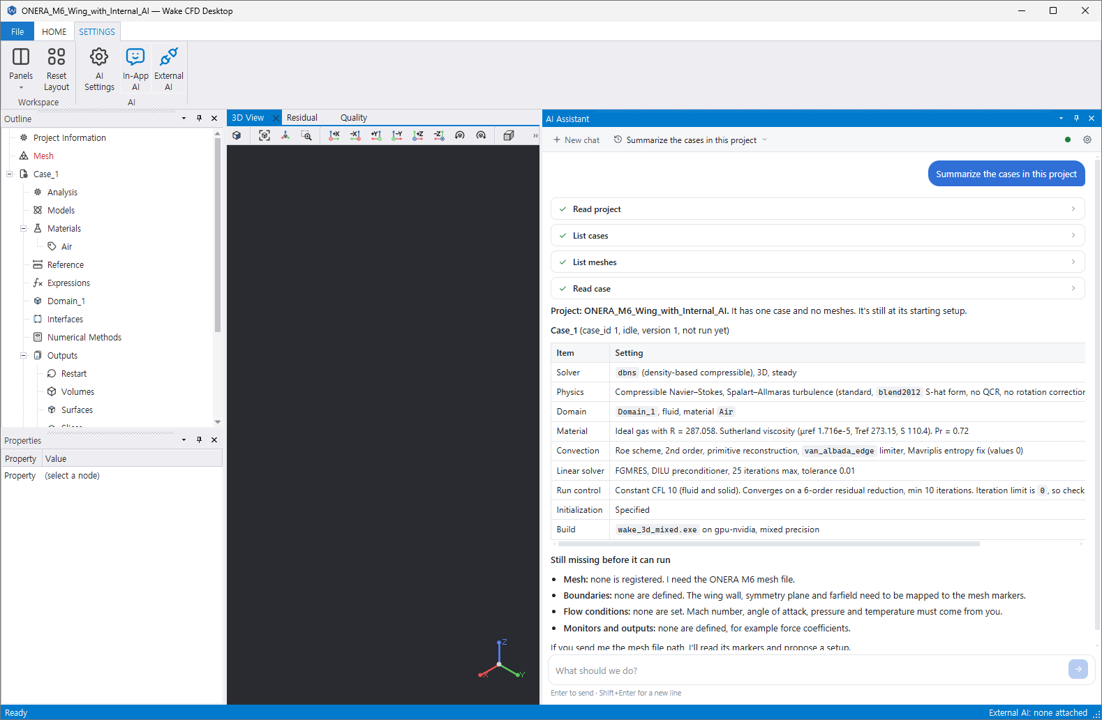
Each tool call appears as its own row, which expands to show what was sent and what came back. The answer comes from the project as it stands in the window, not from the file on disk, so an edit made in Setup is what the panel reads next.
Set up a case
Set up the ONERA M6 wing example.
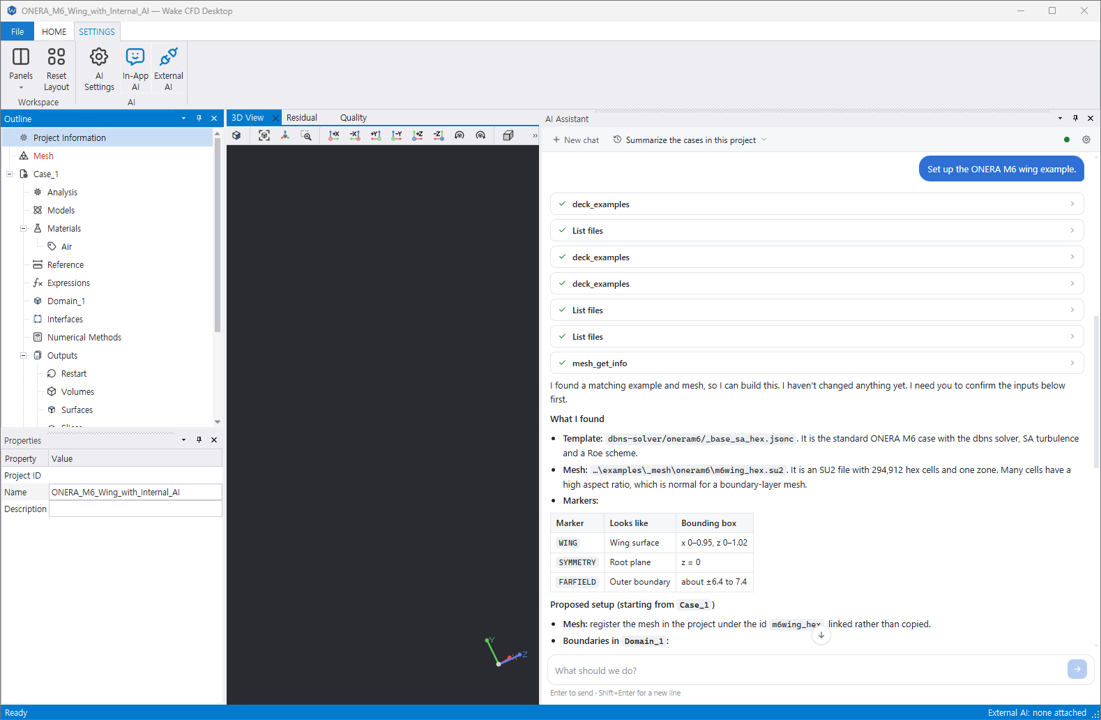
The panel changes nothing until the proposal is accepted. It reports the example and the mesh it found, lists what each marker appears to be, and asks for the values that cannot be read from a file: operating conditions, the choice between alternative meshes, and the role of a marker its name does not settle. Numerical settings it proposes itself and says so.
This course is prescribed by the session rather than by the panel, so an external client follows it too; How the session guides the agent describes it in full.
Confirm the proposal to have it built.
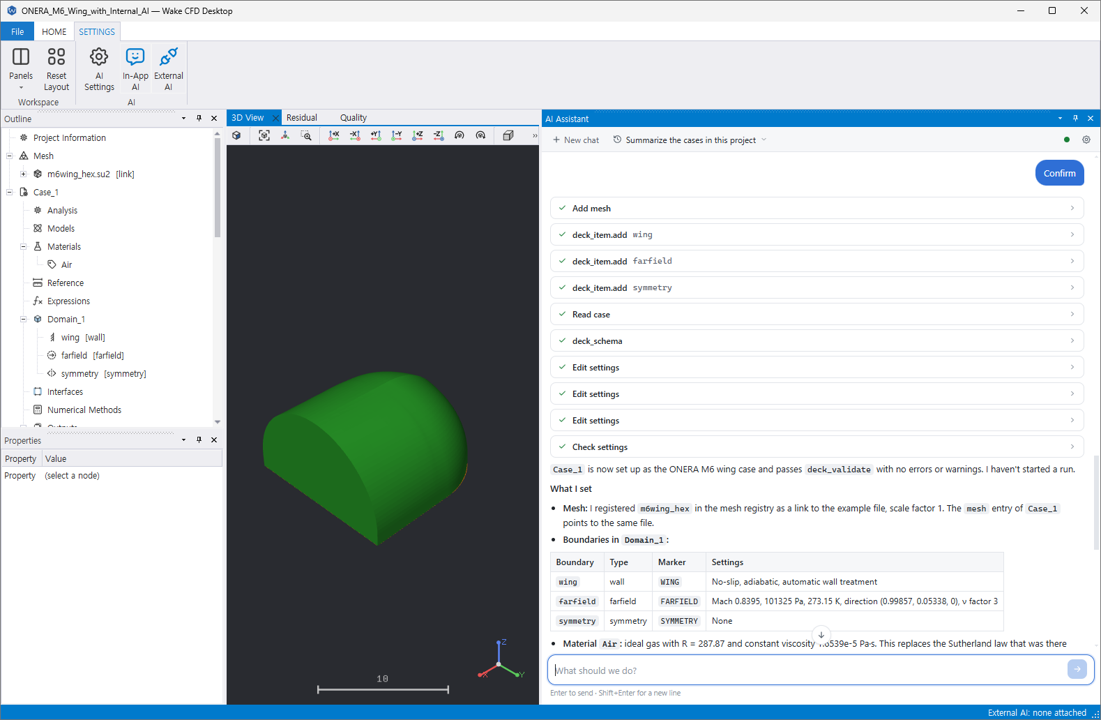
The work is done in steps, with the solver’s validation after each section, and the window follows it: the mesh appears under Mesh, the boundaries under the domain, and the geometry in the 3D View. The panel then reports what it set, what it chose for itself, and what is left. It does not start a run until asked.
Run and read the result
run
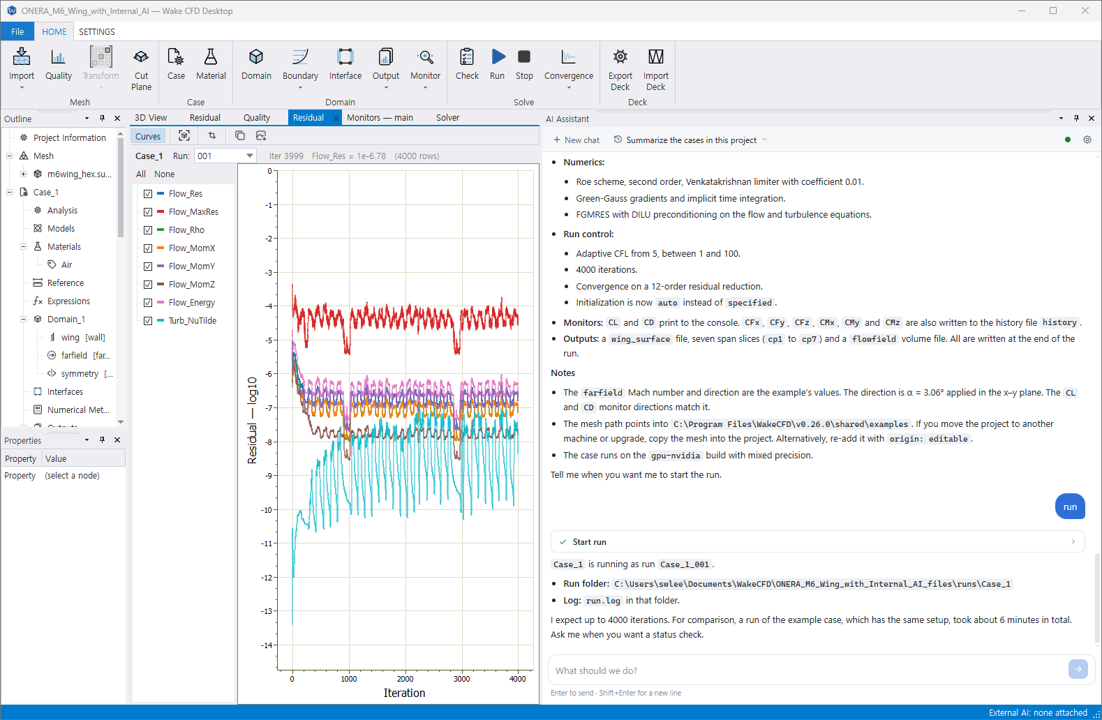
The run appears in the Desktop like any other, with its own run folder and log, and the charts of the Residual and Monitors tabs fill as it proceeds.
Check the result and report the aerodynamic coefficients and whether the solution has converged.
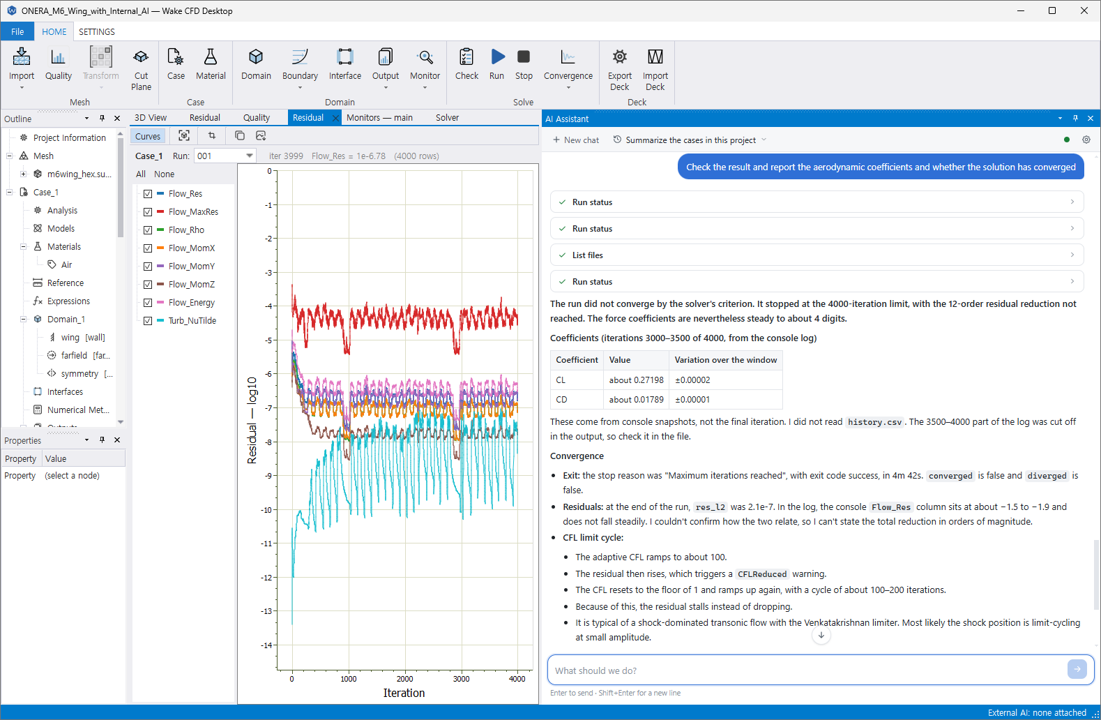
The panel reads the run’s own output, so the coefficients and the end condition are the ones the charts and the log hold. It separates the two questions a run answers: whether the forces have settled, and whether the residual reached the target the case asks for.
Troubleshooting
| Symptom | What to do |
|---|---|
| The panel reads No model is ready to use | No model is registered. Choose Open AI settings, then Add under Models |
| The panel reads The in-app AI Assistant is turned off | Choose Turn On in the panel, or In-App AI in the Settings tab |
| A new model needs checking | Choose Test on its row. The result reads Answered (… ms): …, with the time and the beginning of the answer, or Failed: …. Test checks the model and the key only; to check the tools as well, ask the panel about the open project |
| Test fails although the key is right | Model name must be the provider’s own identifier, written exactly as the provider writes it, for example claude-sonnet-5-5. The display name and a date suffix are not identifiers |
| The key is in an environment variable, and the panel does not find it | A variable set after the Desktop started is not visible to it. Set the variable, then start the Desktop again |
| Test answers, but a request that needs the project fails | The model may not serve tool calls the way the panel sends them. Turn Use the model’s tool-calling API off to send them in XML instead, and compare |
| A reply stops and waits | Approval is set to Ask before hard-to-undo tools, and the agent reached such a tool. Choose Allow or Deny |
| A tool’s result is reported as cut off | Raise Tool result sent to the model (characters) |
| The panel does not appear in the External AI count | It never does. That count reports external clients |
| The panel reports that the assistant service was not found | clew-agent-host is missing from the installation. Set its location in the WAKE_AGENT_HOST environment variable, or as ai/agentHost in the Desktop’s settings file. WAKE_MCP and ai/sessionMcp do the same for wake_mcp |
What to keep in mind
- Chats are kept in the project’s
chatfolder. With no project open, the chat is not saved. - The External AI count in the status bar reports external clients only. The panel does not appear there, even while it is working.
- The panel and external agents can work on one project at the same time. Their edits go through the project one at a time.
- The agent proposes and reports, but the analysis judgment stays with the engineer. Before a run, check the points listed under Engineer review points.