Quickstart: with an AI agent
Set up and run the packaged example by conversation
An AI agent attached to Wake CFD over MCP carries out the steps of Quickstart: ONERA M6 wing in plain language. The agent registers the bundled mesh, writes the case, validates it against the installed solver, starts the run, and reads the result back. The outcome is the project of that quickstart, built without the dialogs.
The conversation below uses an external client, the ChatGPT desktop app. The Desktop’s own AI Assistant panel does the same work from inside the window; see Use the AI Assistant.
1. Attach the agent
The agent edits the project of a running Desktop, so the connection comes first.
| Requirement | Where it is described |
|---|---|
| Wake CFD installed, and the solver verified | Installation |
wake_mcp registered in the client with --attach |
Register the server |
| External AI turned on in the ribbon’s Settings tab | Working with Wake CFD Desktop |
Start Wake CFD Desktop before the client: --attach finds the Desktop that is already running. The right-hand end of the status bar reports the state, and reads External AI: 1 attached once the agent has called its first tool.
2. Ask for the example
Ask for the example by name:
Set up the ONERA M6 wing example.
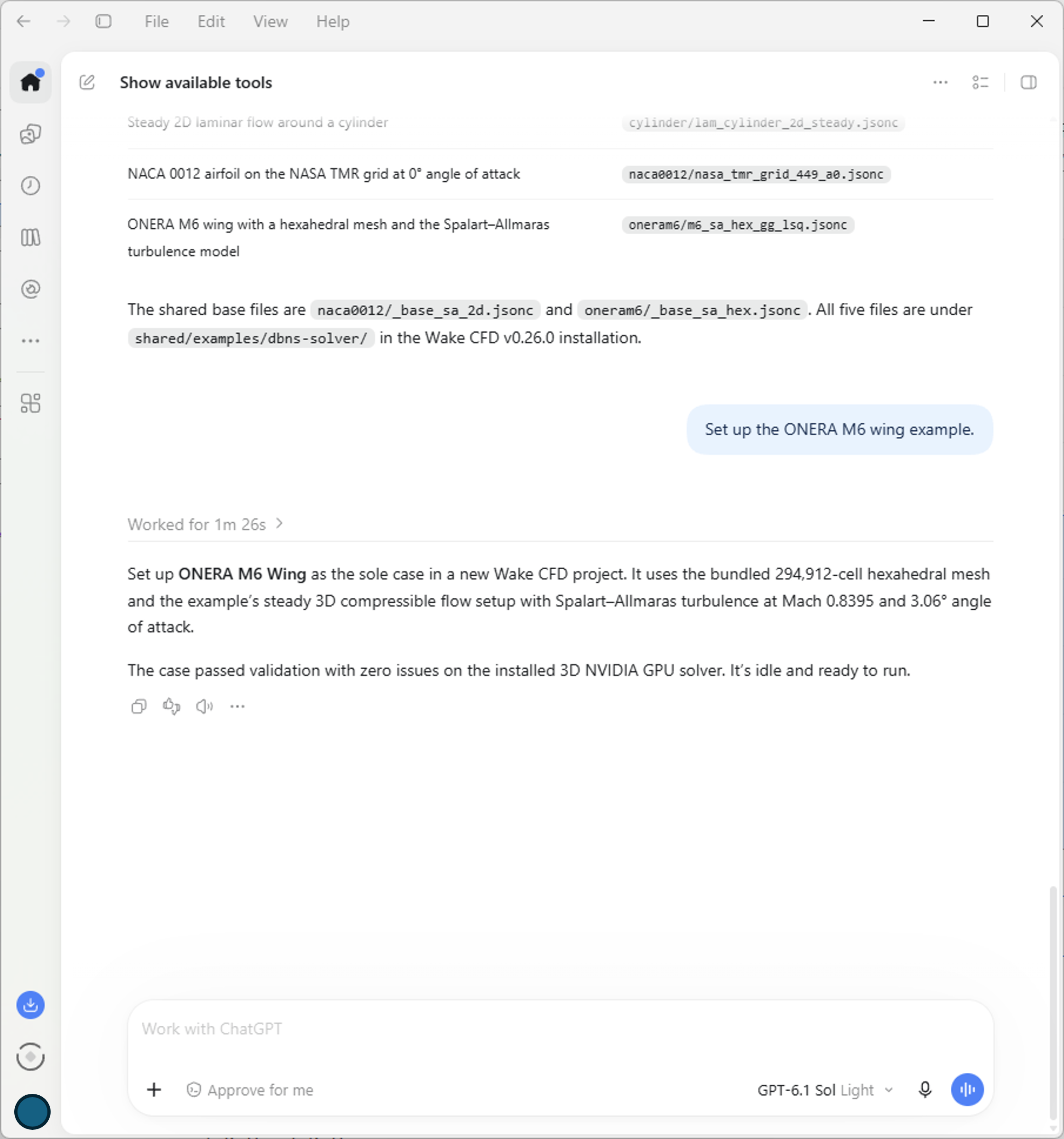
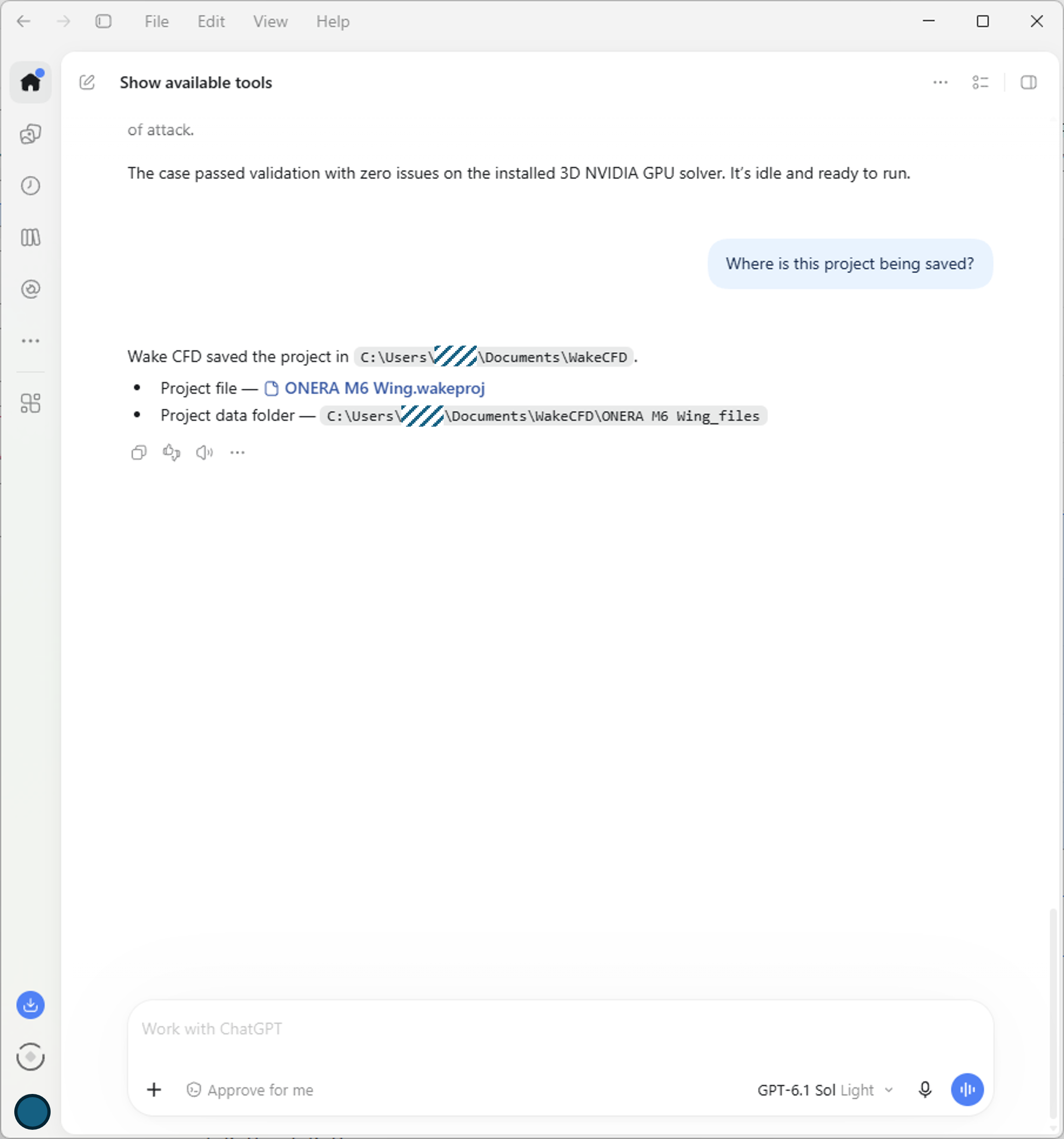
The example brings its own mesh and settings, so the agent needs no values from the engineer here. The request left the project’s name and location to the agent as well. Ask where they went:
Where is this project being saved?
3. Check what it built
The agent reads the case back from the project, so it reports the case as it stands rather than the example file on disk:
What conditions were used in this example?
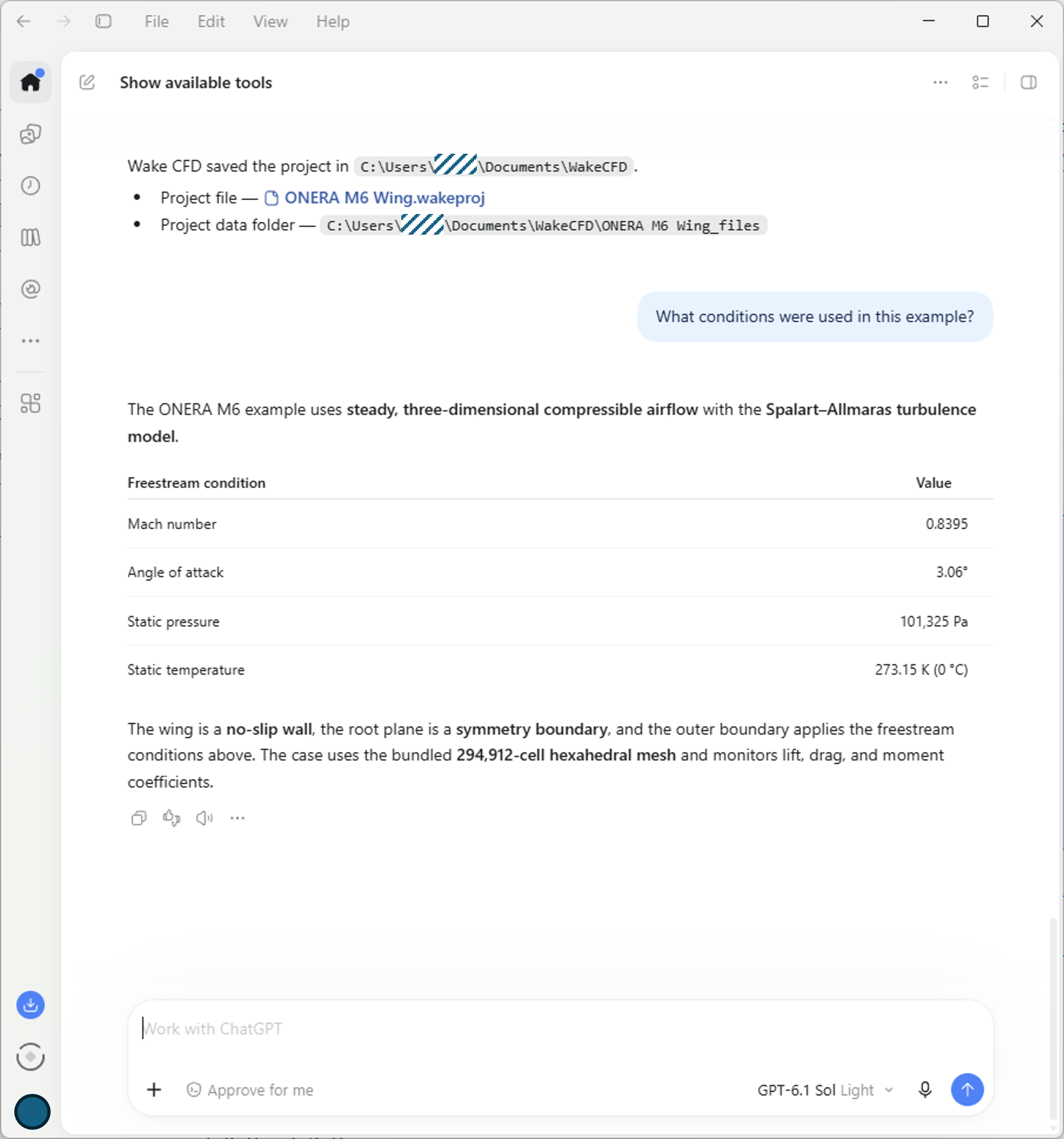
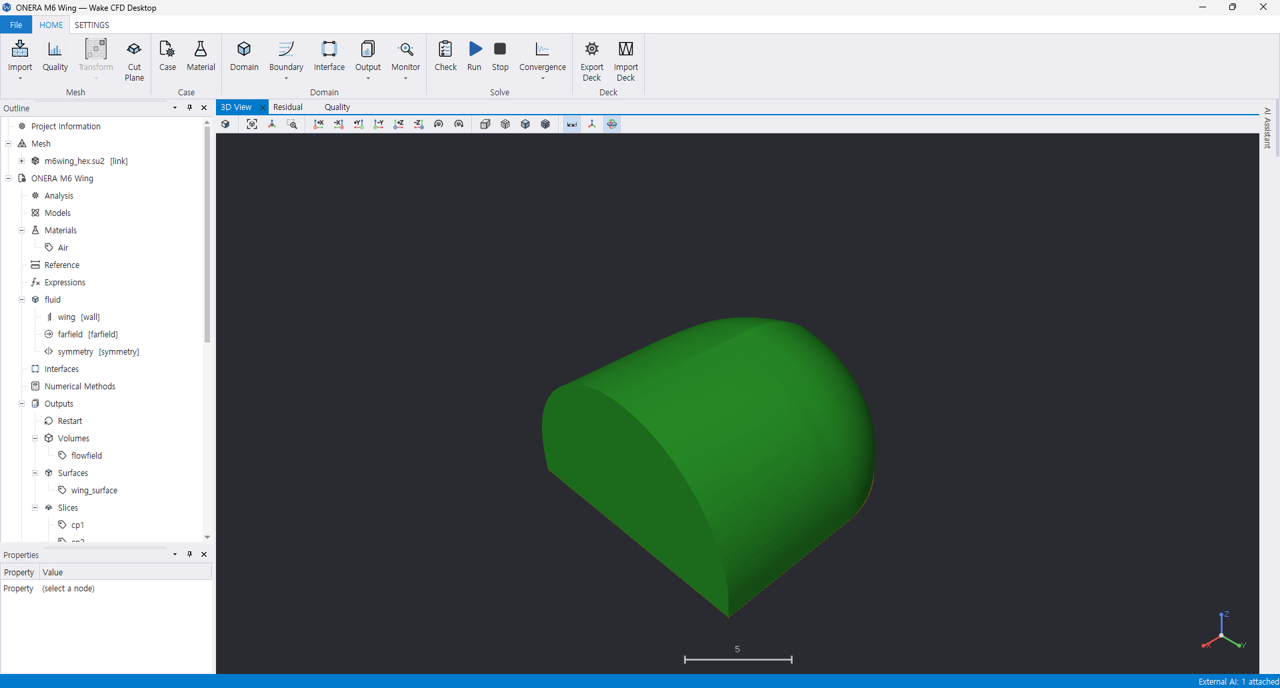
The values are the ones What this example demonstrates lists. The project is an ordinary project: the case appears in the Setup tab and the wing in the 3D View, where the mesh, the boundaries, and the settings can be reviewed or changed before the run.
4. Run the case
Start the run:
Run this case.
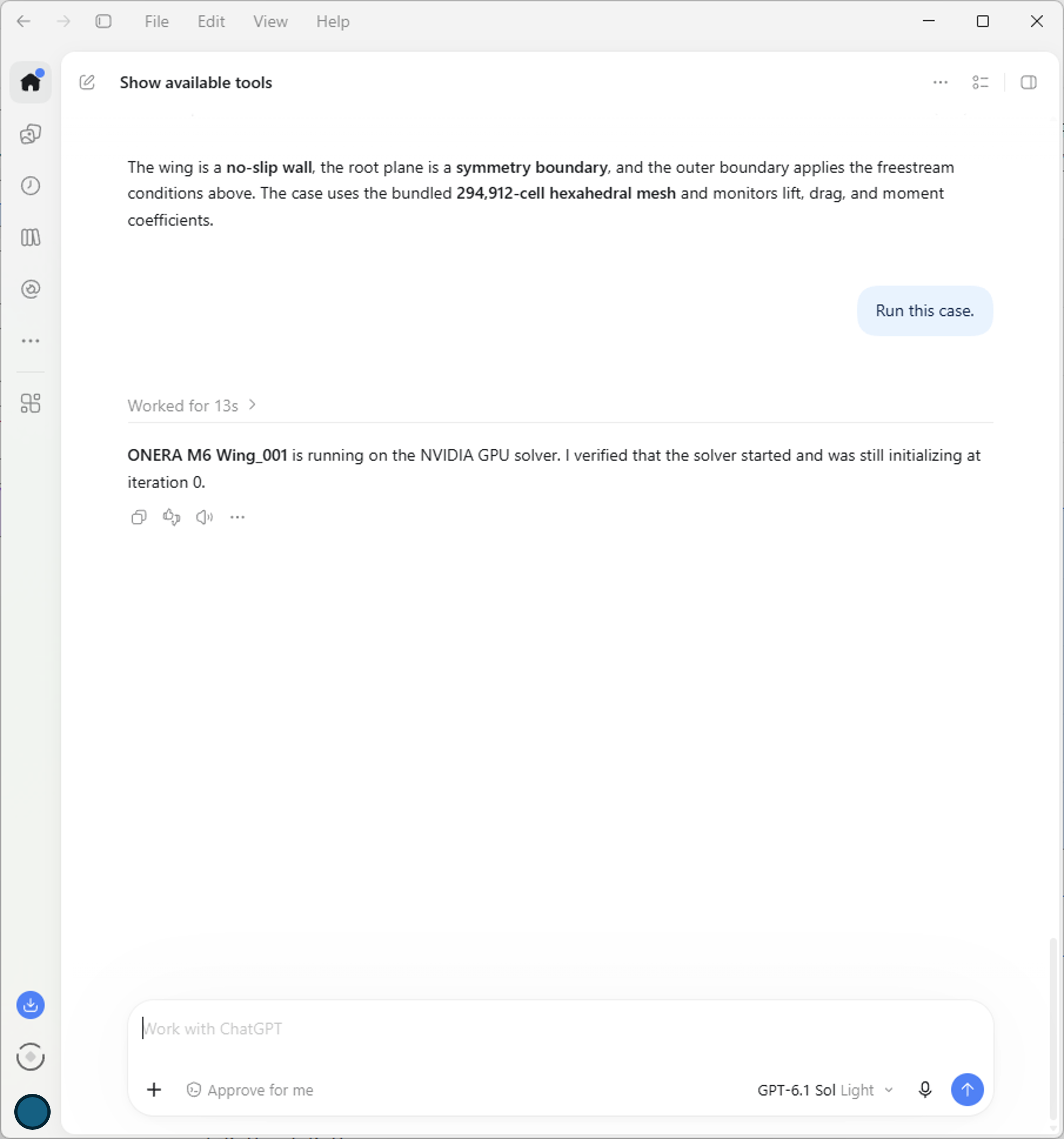
The agent validates the case before it starts the run and refuses one that reports errors. The run appears in the Desktop like any other, with its own run folder and log, and the charts of Watch the run fill as it proceeds.
5. Read the result
When the run ends, ask for the result instead of reading it from the charts:
Check whether the simulation has finished, and report the aerodynamic coefficients and whether the solution has converged.
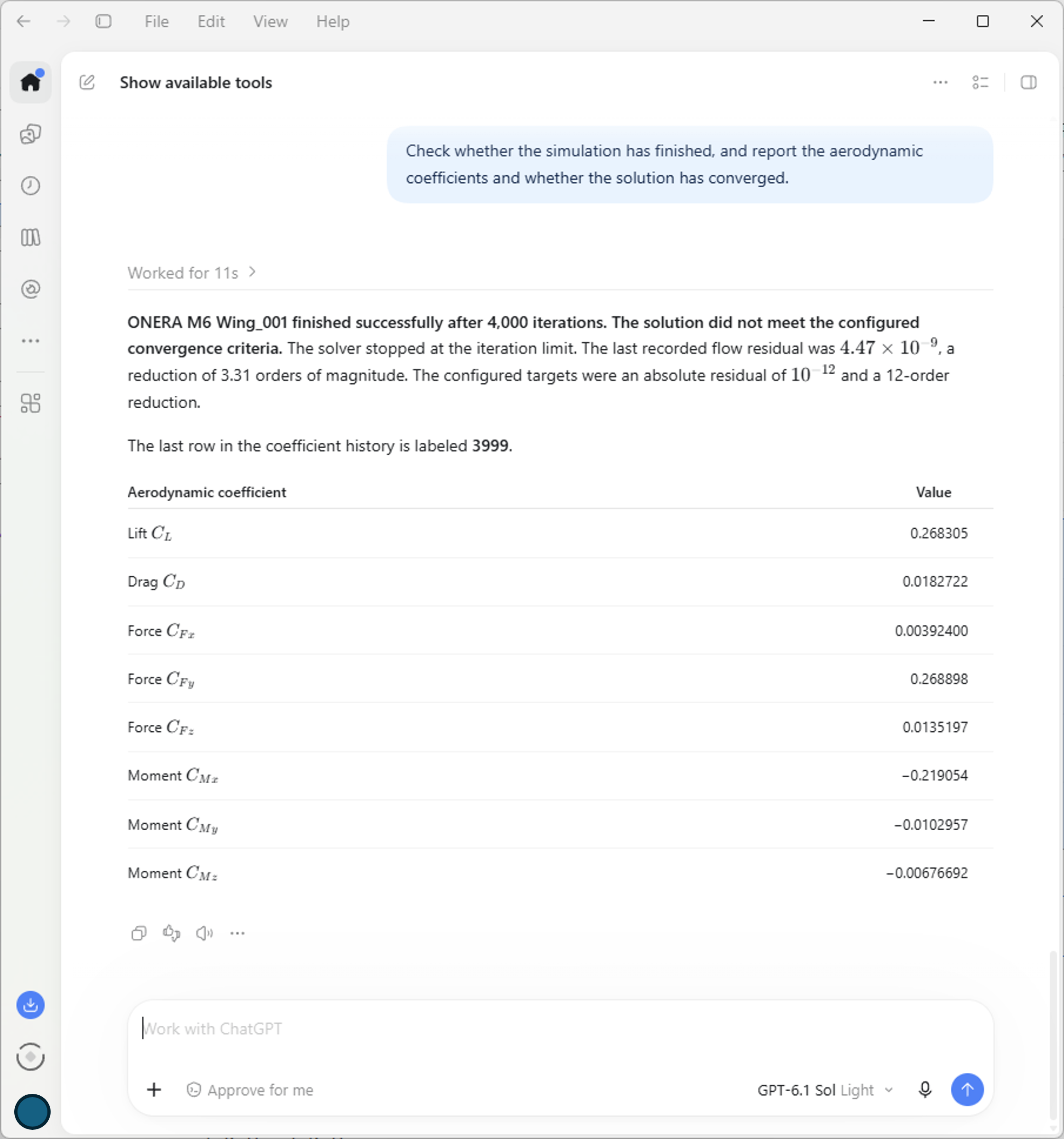
CL 0.268305 and CD 0.0182722 at iteration 4000 are the values the Monitors chart settles on (Monitors figure), and the end condition is the one the verification criterion of View the results describes: the run reaches its iteration limit with the flow residual at 4.47 × 10⁻⁹, a reduction of 3.31 orders of magnitude, short of the targets configured in Run Control.
The agent reports the run, but the judgment stays with the engineer. Before a run of a case the agent has set up, check the points listed under Engineer review points.